Start session
Create a session in the app. Your device will control the shared page number.
One book, many learners, one shared page number. With the Android app SendNumber, you control the page display in class, in courses, or in reading groups. Connected devices show the current number in real time.
For Android · One app. One shared status.
Change the page number and watch both example displays update. Local demo, not a real session.
01 / The Principle
From the first connection to the next page: three simple steps for a shared view.
Create a session in the app. Your device will control the shared page number.
Share the QR code or the 6-digit session ID. Other devices will join your session.
Change the number with + and −. All connected displays update to the new page number in real time.
02 / Your Display
Whether at the front of the classroom or on your own device: adapt the display to your learning situation.
Select a preset to test the text size.
80–500 px · Preview scaled down
Protect entry with an optional password if needed.
Pause and resume the session without disconnecting devices.
Quickly rejoin your last session and switch between controller and display as needed.
SENDNUMBER / APP INSIGHTS
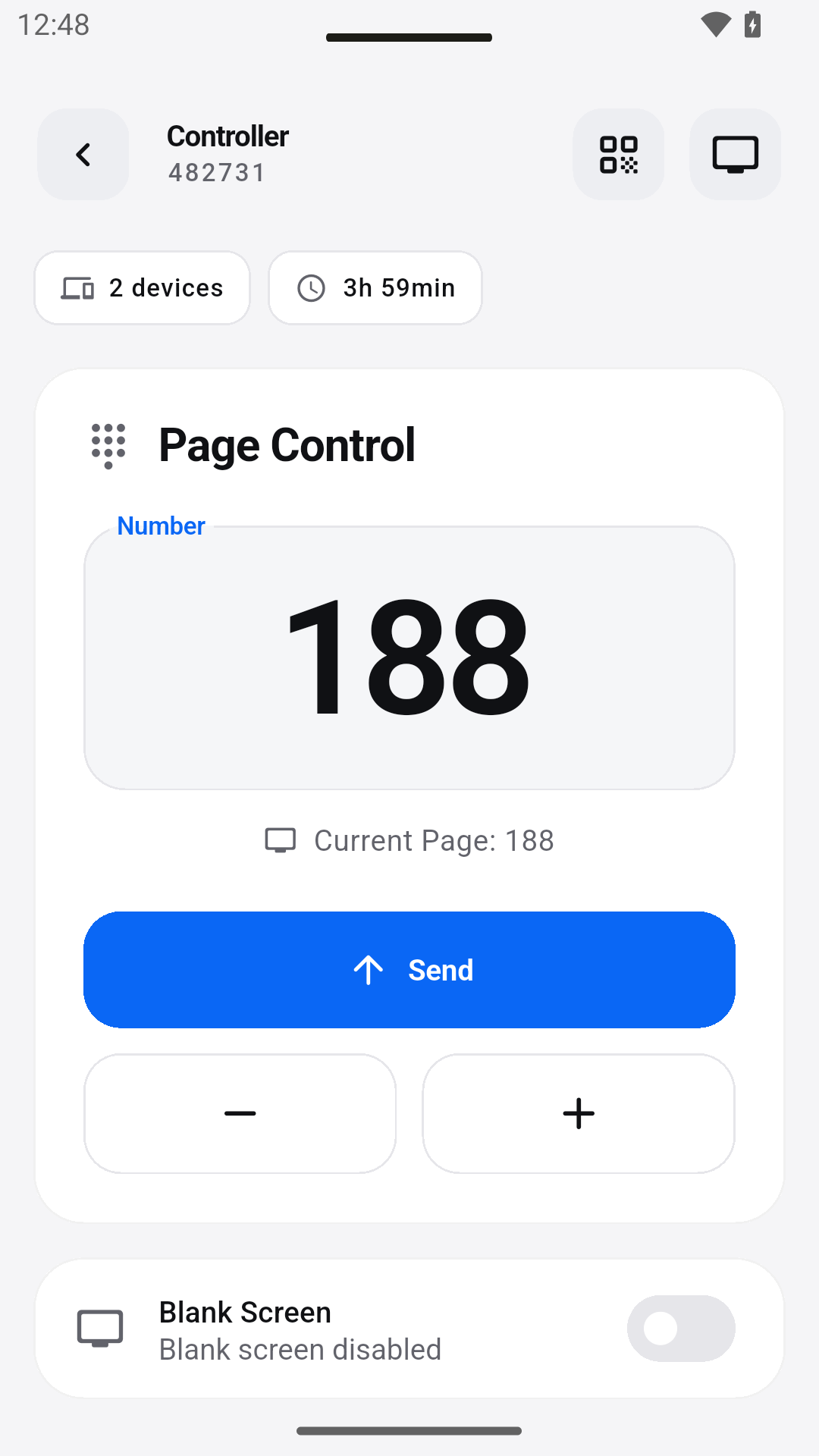
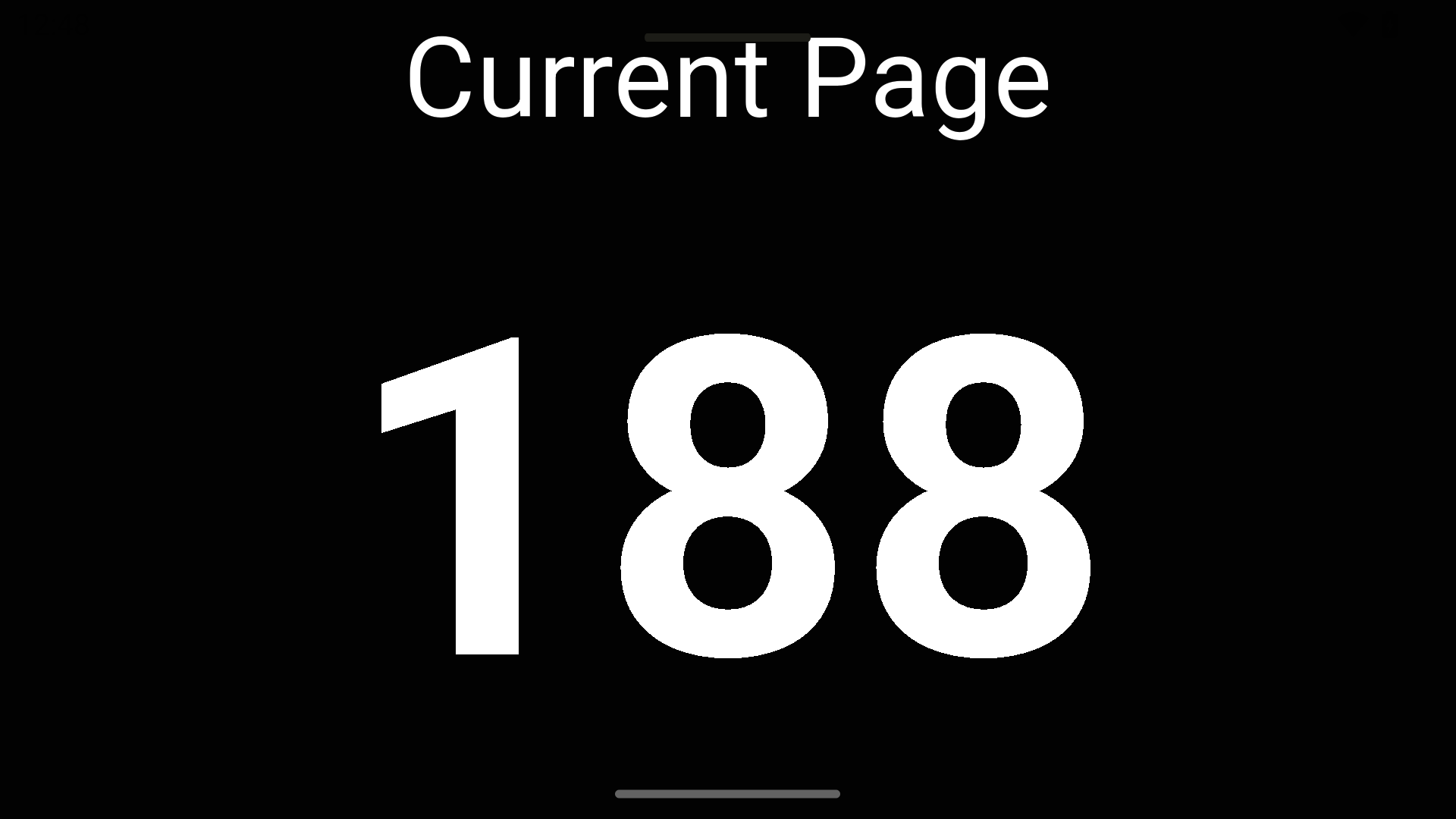
The provided app recordings show the controller and two views of a shared page number.
Real Android screenshots of the multilingual test version, using a local demo session. The current Google Play version may differ.

IN PRACTICE
When everyone is working with the same materials, a visible page number is often enough for orientation. Here is a possible workflow for a shared reading phase – from preparation to discussion.
Determine which book or script you are using. Different editions may have different page numbers. SendNumber transmits the number, not the book content; learners keep their own copy in front of them.
As a teacher, start a session and share the QR code or the 6-digit session ID. Participants join via the app and use their device as a display. An optional password can protect access.
Adjust the page on the controlling device using + and −. As you move through the text, the display follows on the connected devices. Test the text size from the learners' seats; not every distance requires the same layout.
Pause the session for a discussion and then resume it without disconnecting the devices. Audio signals for number changes are optional – decide if they support your reading phase.
03 / Shared use
A visible page number for collaborative work with the textbook.
Everyone finds the right spot – and stays on script.
A shared reference for scripts and course materials.
Keep track of the current page across multiple displays.
04 / Good to know
For a shared page reference, material page numbers should match. With different editions, page 128 might be a different text passage; SendNumber does not sync book editions.
SendNumber shares the current number between connected devices. Distribute books and files separately. The app is not a PDF delivery service or an e-book library.
Language courses, professional training, and reading groups can also work with a shared page number. The key is using the same reference point in your materials.
SendNumber synchronizes the current page number. One device controls the number, and connected displays show the same reference. Books, documents, and presentation slides are not transferred.
Via the QR session code or by entering their 6-digit session ID in the app. If you set an optional password, it will be required to join.
Set the text size between 80 and 500 px and choose your own text and background colors. Styles include Classic, Minimal, Card, and Fullscreen, plus presets like Chalkboard, Whiteboard, Night Mode, and High Contrast.
Yes. You can enable optional sound signals for number changes in the app.
No. The demo shows the principle locally in your browser. For sessions with connected devices, use the SendNumber app. The display is a simplified illustration, not an app screenshot.
Get your study group on the same page with SendNumber.